
Not every B2B order starts in a Shopify cart.
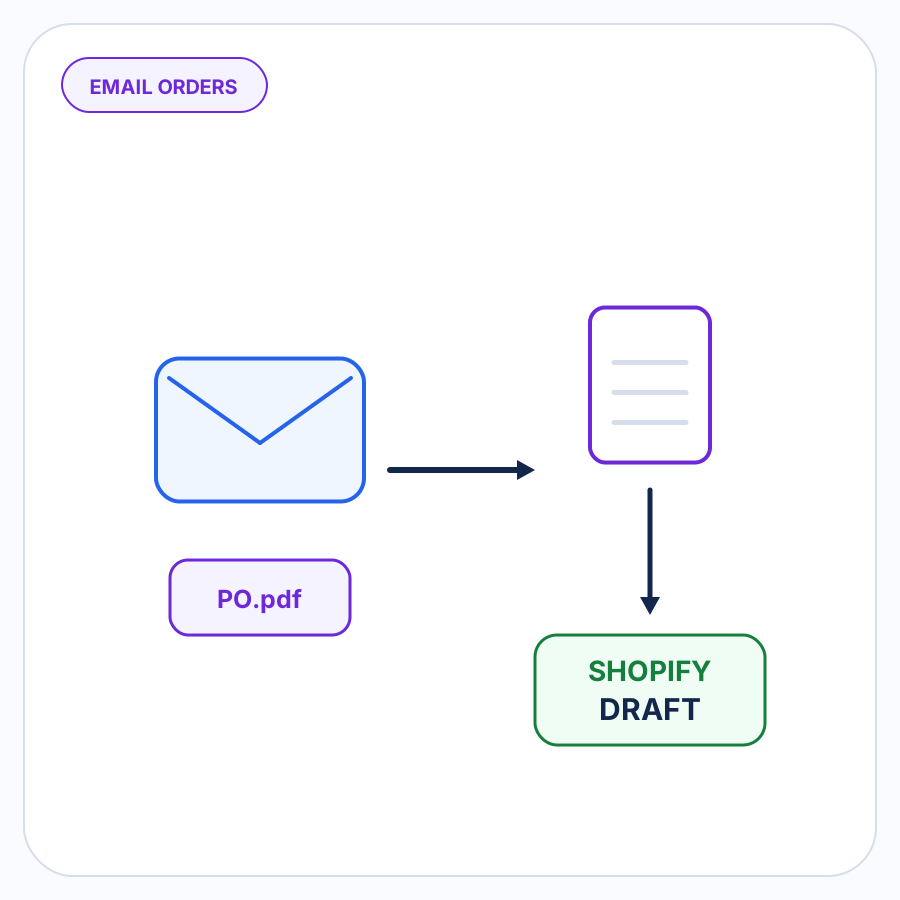
A buyer might email a purchase order, send a spreadsheet, attach a scan, or give a sales rep a list of products and quantities. Shopify can handle the resulting sale through a B2B draft order, but somebody still has to translate that outside request into the right buyer, products, quantities, pricing context, shipping details, and other order information.
That translation is the real order-entry problem.
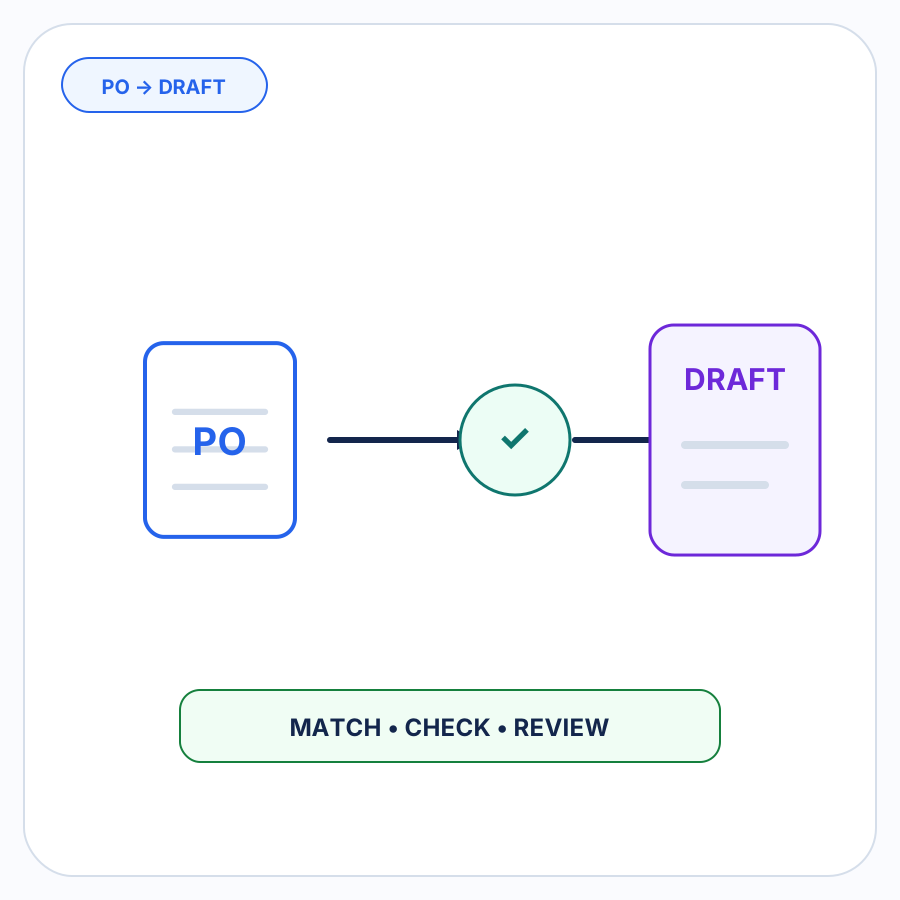
Reliable B2B order-entry automation should do more than read a document. It should match the request to Shopify, resolve the details it can support with real data, identify anything that does not line up, and leave those exceptions for a person to review before the draft order is created.
This guide is about incoming customer orders. It is not about purchase orders that you create and send to suppliers for inventory replenishment.
What B2B order entry means in Shopify
Order entry is the process of turning a customer’s request into a usable order record.
It is narrower than order management, which can continue through payment, fulfillment, invoicing, accounting, returns, and reporting.
For an order placed through your storefront, much of the entry work happens naturally during checkout: the customer identifies itself, selects products from your catalog, enters quantities, and submits shipping and payment information in a structured form.
An order that arrives outside the storefront has none of those guarantees.
Shopify documents B2B draft orders for orders received directly by phone or email. When a B2B customer and company location are assigned to the draft, Shopify can apply the relevant company context, including settings such as pricing and payment terms.
That makes a draft order a useful destination for an outside-storefront B2B request. The challenge is getting from the buyer’s request to that correctly configured draft without simply retyping everything by hand.
Why outside-storefront B2B orders are harder than they look
A purchase order can be perfectly legible and still be difficult to enter correctly.
Imagine an order that says:
ABC-12 — 4 cases — $84.00
Reading those fields is easy. Entering the order correctly can require several additional answers:
- Which Shopify B2B company sent the order?
- Which company location is buying?
- Is
ABC-12your SKU, or the buyer’s internal product code? - What does one case contain for this buyer and product?
- Is
$84.00the expected price? - Is the shipping address the usual address for this location?
- Is the product currently available?
- Has the same purchase order already been processed?
Those questions are why document extraction and order-entry automation are not the same thing.
Document reading is only the first step
OCR or document interpretation can turn text on a page into fields such as a customer name, SKU, quantity, and price.
That is useful, but those fields still need to be reconciled with the system that will own the order.
If a buyer calls an item ABC-12 and Shopify knows it as variant SKU WIDGET-500, extracting ABC-12 accurately has not solved the product match.
The same applies to a quantity of 4 cases. Until the workflow knows what a case means for that buyer-product relationship, converting it to a Shopify quantity requires either evidence or human judgment.
Good automation separates those two jobs:
- Interpret what the buyer sent.
- Resolve that information against Shopify data and merchant-approved rules.
A system should not turn uncertainty in step two into a confident guess.
A reliable Shopify B2B order-entry workflow
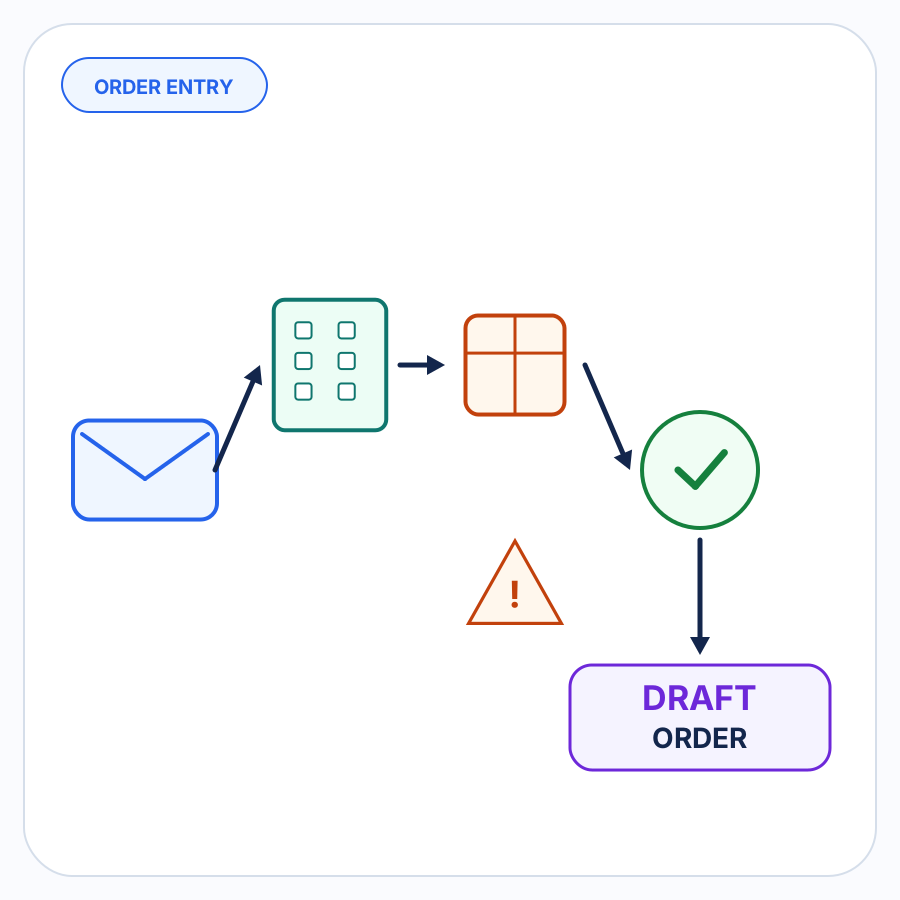
A practical order-entry workflow can be broken into seven stages.
1. Capture the order where it already arrives
Start with the channels your buyers actually use rather than assuming every buyer will adopt a new ordering process.
That might include emails, attached PDFs, spreadsheets, scans, structured files, or order details entered by a sales or operations team.
Moving buyers to self-service can make sense in some businesses, but it is not the only way to reduce manual entry. Automation can also sit between an existing intake channel and Shopify.
The important thing is to give each order one clear path into the same processing workflow.
2. Interpret the request
Next, turn the source into structured order information.
Depending on the source, that can include:
- buyer identity;
- purchase order number;
- products or product codes;
- quantities;
- units of measure;
- prices;
- shipping information;
- requested dates;
- notes or special instructions.
This stage should capture what the buyer actually supplied. It should not silently fill in Shopify-specific facts that are not supported by the source or your store data.
3. Match the buyer to the right Shopify company and location
For Shopify B2B, identifying the company is only part of the job.
A company can contain multiple company locations, and location-level information can differ. Shopify company locations can carry details such as shipping and billing addresses, pricing, payment terms, checkout settings, and contacts.
That means a workflow that merely recognizes the company name may still lack enough context to prepare the correct order.
Useful matching evidence can include the buyer name, contact, known locations, shipping address, and previously approved relationships. If the available evidence points to more than one plausible location, the order should stop for review.
4. Resolve products, buyer SKUs, and units
Product matching should favor known facts over fresh interpretation.
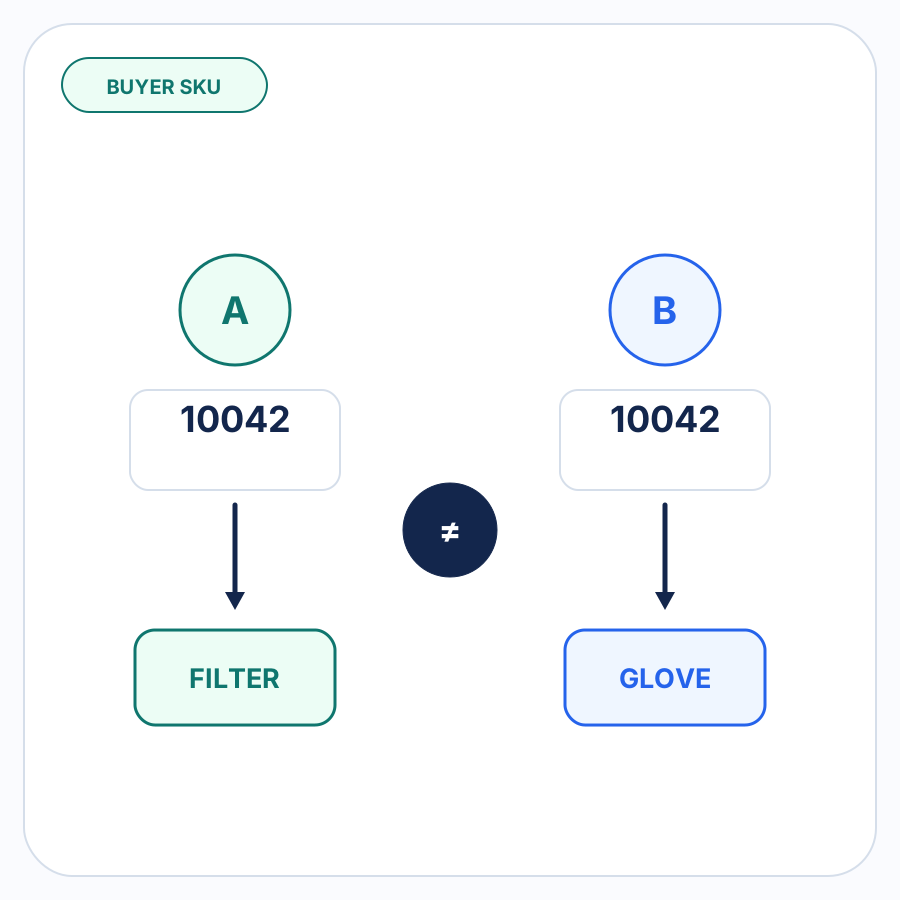
A straightforward merchant SKU can resolve directly to a Shopify variant. A buyer-specific code may require a mapping between that buyer’s terminology and the merchant’s catalog.
The same principle applies to units of measure.
If an approved mapping says a particular buyer uses case to mean 12 units of a specific product, that mapping is stronger evidence than trying to infer the case size again on every order.
Reliable automation therefore gets better operationally when it can reuse approved buyer-specific relationships while still treating new or changed information as uncertain.
An unknown product code should remain an unknown product code until it can be resolved. It should not become the nearest-looking Shopify item just because the names are similar.
5. Check the important order details
Once the buyer and products are resolved, the proposed order should be checked against the information that matters in Shopify and in the merchant’s workflow.
Common review points include:
- pricing discrepancies;
- unusual or inconsistent quantities;
- units and case-pack conversions;
- shipping-address changes;
- inventory concerns;
- duplicate purchase order numbers;
- missing or ambiguous information.
A check is not the same as an automatic correction.
If a buyer sends a price that differs from the relevant Shopify price, for example, the useful result is a visible discrepancy. Whether the buyer’s price should be accepted is a business decision.
6. Put only the uncertain parts in front of a person
Automation becomes less useful if staff still have to verify every field on every line.
A better review model is to resolve repeatable work when there is enough evidence and bring forward the smaller set of details that actually require judgment.
For example, a 20-line request might have 18 products that match known buyer mappings, one new SKU, and one changed shipping address.
The review should be about the new SKU and changed address—not a forced reapproval of the other 18 known lines.
This is an exception-focused workflow: automate the parts with a supported answer and make uncertainty visible.
7. Create the Shopify B2B draft order
After the unresolved details have been addressed, the result can become a Shopify B2B draft order.
Using a draft rather than treating interpretation as a completed sale creates a useful boundary between preparing the order and finalizing the transaction.
From there, the merchant can use Shopify’s normal B2B draft-order workflow according to its payment, invoicing, and checkout process.
What should automate, and what should stop for review?
The dividing line should be evidence, not whether a field happens to look plausible.
| Situation | Recommended handling |
|---|---|
| Buyer and company location match known Shopify records | Resolve automatically when the evidence is clear |
| Merchant SKU exactly matches a Shopify variant | Resolve automatically |
| Buyer SKU has a previously approved mapping | Reuse the approved mapping |
| UOM or case pack has a previously approved buyer-specific mapping | Reuse the approved mapping |
| Product code could refer to multiple variants | Review |
| Buyer sends an unfamiliar SKU | Review |
| Incoming price differs from the expected Shopify pricing context | Surface the discrepancy for review |
| Shipping address differs from the expected location information | Surface the change for review |
| Inventory creates a potential fulfillment issue | Surface it for review |
| Purchase order appears to duplicate an earlier PO | Surface it for review |
| A value is missing from the source and cannot be established from authoritative data | Review rather than invent it |
The goal is not automation at any cost. It is reducing repetitive work without making uncertain orders harder to trust.
Five approaches to reducing B2B order entry
There is no single correct intake method for every Shopify B2B operation.
The useful question is which approach fits the way your customers already buy.
| Approach | Best fit | Main trade-off |
|---|---|---|
| Manual Shopify draft-order entry | Low order volume or highly unusual orders | Flexible, but repeated requests still have to be re-entered |
| Buyer self-service or quick ordering | Buyers willing to place their own orders through a storefront or portal | Produces structured input but changes the buyer’s ordering process |
| Structured spreadsheet or CSV import | Buyers that reliably use a defined file layout | Efficient with consistent data; mismatches and format changes still need handling |
| EDI or another structured integration | Trading partners with an established structured transaction workflow | Strong for standardized partner connections, but does not solve every email, document, or informal request |
| Outside-storefront order-entry automation | Teams receiving a mix of emailed, uploaded, or plain-language requests | Preserves existing buyer channels but requires good matching, validation, and review logic |
These approaches can coexist.
A merchant might have some buyers using the Shopify storefront, a large account using EDI, and several long-standing customers that continue to send purchase orders by email.
The objective does not have to be forcing every order into one intake channel. It can be giving different channels a reliable path into the same Shopify order system.
Where Shopify Flow fits
Shopify Flow and order-entry automation solve related but different problems.
Shopify describes Flow as a way to automate manual tasks and build workflows around Shopify data and events. That makes it useful for operations that happen once a customer, company, order, or other relevant Shopify object is already available to the workflow.
An outside order request has an earlier problem.
Before Shopify can act on an emailed document or other unstructured request as an order, something still needs to determine what the buyer meant, identify the relevant Shopify records, resolve the line items, and decide whether anything needs review.
In practice, an order-intake layer and Shopify-native workflow automation can complement each other rather than competing for the same job.
What to look for in B2B order-entry automation
When evaluating an automated order-entry process, look beyond whether it can extract text from your buyers’ documents.
A useful system should answer these questions:
- Does it support the order channels buyers actually use? A PDF-only workflow does not solve email-body orders or spreadsheets.
- Can it identify both the Shopify B2B company and the relevant company location? Company-level matching alone can miss important location context.
- How does it resolve products? Known Shopify identifiers and approved mappings should outrank guesses.
- Can it represent buyer-specific SKUs and units? Repeated buyer conventions should not need to be rediscovered on every order.
- What does it check after extraction? Pricing, quantities, addresses, inventory, and duplicate POs can matter as much as the text on the source document.
- What happens when the system is uncertain? Ambiguity should become a review item rather than an unsupported match.
- Can approved mappings be reused? Repeat orders should benefit from relationships the merchant has already confirmed.
- What does the automation create? For a review-first Shopify B2B workflow, a prepared draft order provides a clear checkpoint before the transaction is finalized.
The strongest automation is usually not the system that claims to make the most decisions. It is the system that is clear about which decisions it can support and which ones still need a person.
How PO Autopilot handles this workflow
PO Autopilot is built for Shopify B2B teams that receive customer orders outside the storefront.
Orders can enter through a forwarded email, order details written in the email body, an uploaded PDF, XLSX, CSV, TXT, image or scanned document, or the in-app Describe order option.
PO Autopilot interprets the request and matches it to Shopify B2B companies, company locations, and products. Approved buyer-specific SKU, UOM, and case-pack mappings can be remembered for later orders.
It can also surface issues involving pricing, quantities, units, case packs, shipping addresses, inventory, duplicate purchase orders, and other missing or ambiguous details.
The intended workflow is not to silently turn every input into a live order. PO Autopilot resolves what it can, brings unclear or inconsistent details to the merchant, and creates the Shopify draft order once the merchant is satisfied.
If your team is re-entering B2B orders received outside the storefront, see the PO Autopilot workflow.
FAQ
Can Shopify create a B2B order that arrives by email?
Yes. Shopify supports creating B2B draft orders for orders customers send directly to you outside the online store, including email and phone orders.
The manual workflow starts with creating a draft order, selecting the B2B customer and company location, and entering the relevant products and order details. Order-entry automation addresses the work required to turn the incoming request into that correctly prepared draft.
Is B2B order entry the same as B2B order management?
No.
B2B order entry is the narrower process of capturing a customer’s request and recording the correct order information. B2B order management can cover a much larger lifecycle including approvals, payment, fulfillment, invoicing, accounting, and post-order operations.
This guide focuses on the intake-to-draft portion of that lifecycle.
Is customer purchase-order automation the same as Shopify supplier purchase orders?
No.
The phrase purchase order can describe two opposite directions of a transaction.
An incoming customer PO is a buyer asking your business to sell it products. That is the workflow discussed here.
Shopify also uses purchase orders for agreements that a merchant creates with suppliers when purchasing inventory. That is a procurement and replenishment workflow, not B2B customer order entry.