
B2B orders do not always arrive through a storefront. Sometimes the buyer attaches a purchase order. Sometimes the entire order is a few lines typed into an email.
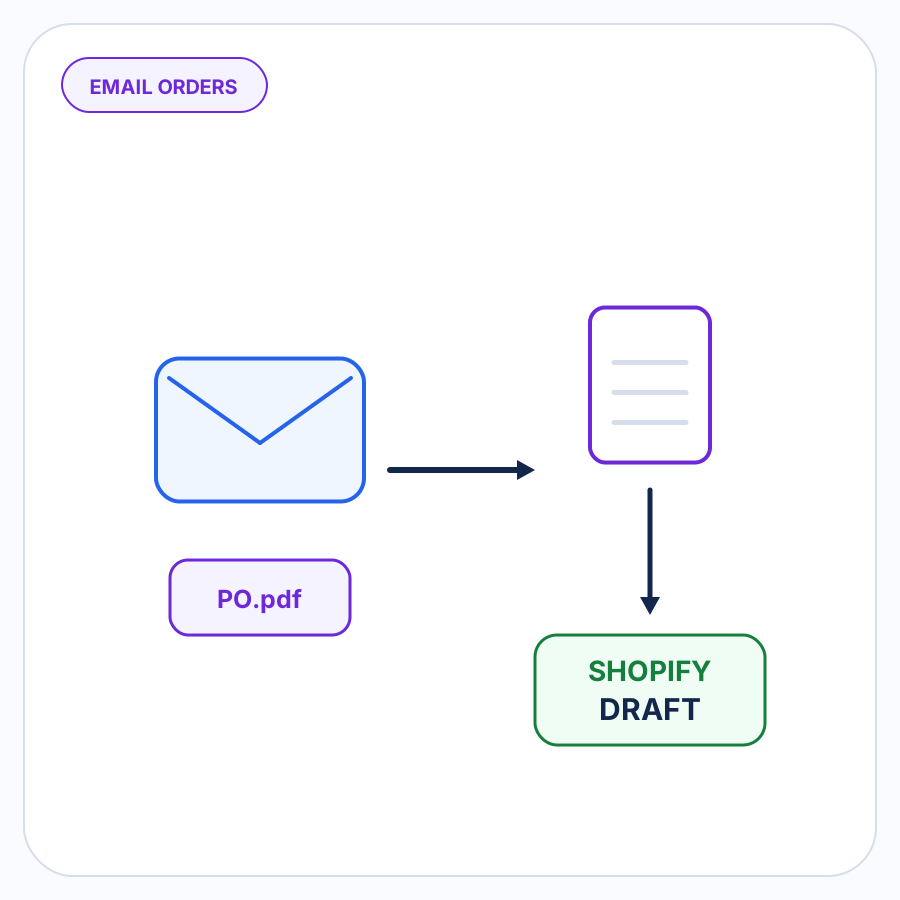
Shopify supports creating B2B draft orders for orders customers send directly by email. The difficult part is everything between the inbox and that draft: interpreting what the buyer requested, identifying the right Shopify B2B company and location, resolving products and units, checking the details, and deciding what needs a person before the order is created.
That is what email order automation needs to handle.
A practical workflow looks like this:
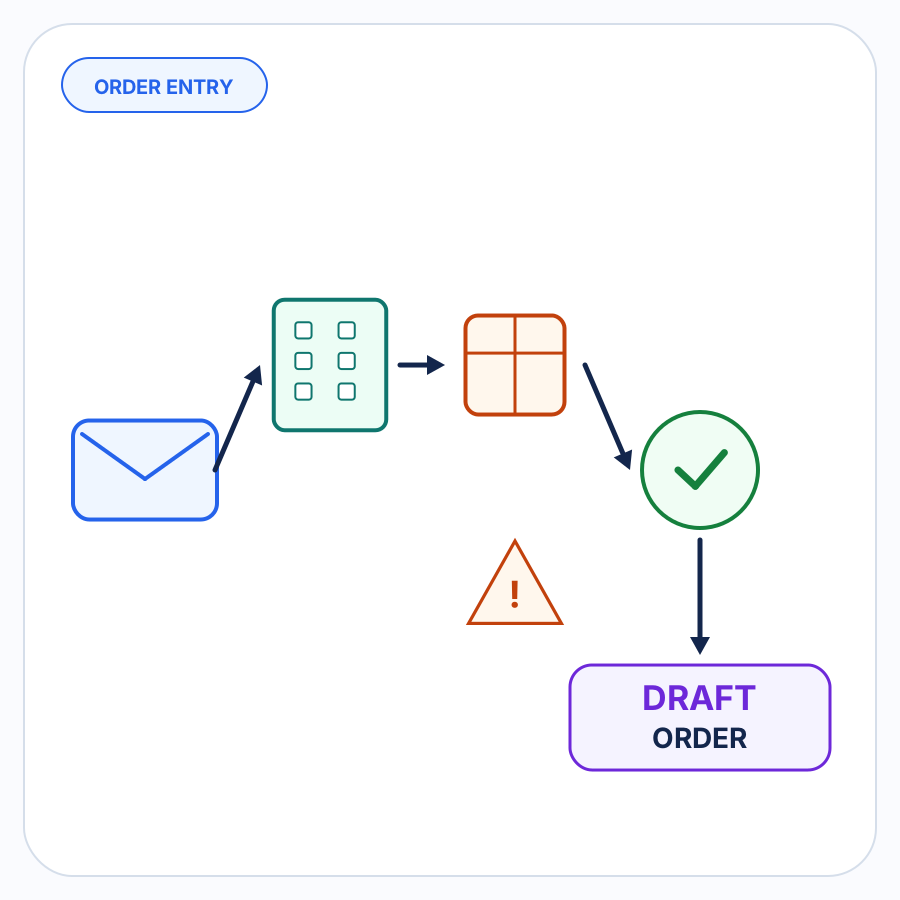
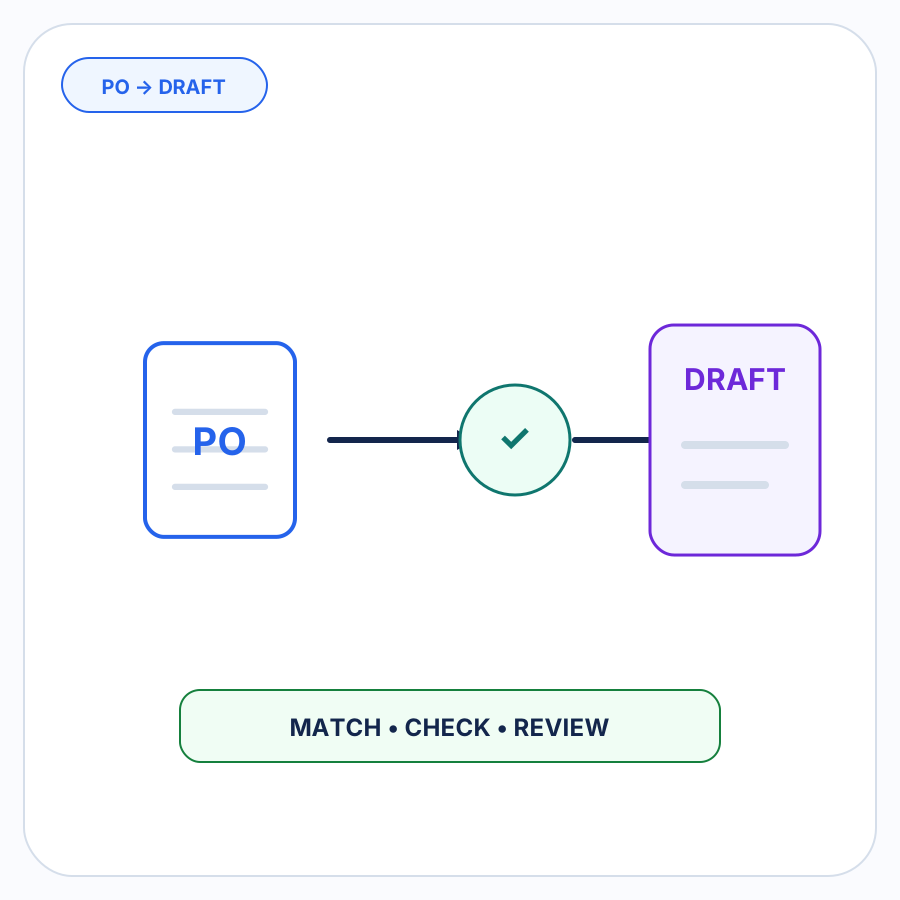
Inbox → Interpret the request → Match it to Shopify → Check and review → Create the B2B draft order
This guide focuses specifically on incoming customer orders sent by email. For the broader problem across email, files, and other outside-storefront requests, see Shopify B2B order-entry automation.
When this page refers to a purchase order, it means a PO sent by a customer to the merchant, not a supplier purchase order used for inventory replenishment.
An email is an intake channel, not an order format
There is no single shape for an emailed B2B order.
One buyer might attach a formal PDF purchase order. Another might send a spreadsheet. A long-standing customer might simply write:
Hi — please send 12 cases of ABC-500 to our primary location. PO 8741. Thanks.
The lack of an attachment does not make the second request less relevant to an order-entry workflow. It only changes what needs to be interpreted.
This matters when designing email automation. A system that only watches for PDF attachments still leaves body-text orders for someone to copy into Shopify manually. A workflow that treats email as the intake channel can instead determine where the useful order information is and process it from there.
The email body can also contain context that matters even when an attachment exists. If information from different parts of the request conflicts, the safe outcome is not to guess which one the buyer meant. It is to make the conflict visible for review.
What an emailed order has to become before Shopify can use it
Reading an email is not the same as preparing an order.
The first useful output is a structured representation of what the buyer actually requested. Depending on the email, that might include:
- buyer or account information;
- purchase order number;
- product names, SKUs, or buyer-specific product codes;
- quantities;
- units such as each, case, or pack;
- prices supplied by the buyer;
- shipping information;
- requested dates;
- notes or special instructions.
Those fields are evidence from the request. They are not automatically Shopify facts.
For example, extracting ABC-500 from an email does not establish which Shopify variant it belongs to. Reading 12 cases does not establish how many individual units should be ordered. Recognizing the sender’s company name does not necessarily establish which Shopify company location should own the draft.
Email interpretation therefore needs to be followed by Shopify matching.
From the inbox to a Shopify B2B draft order
1. Capture the complete order request
The first step is simply getting the customer’s email into a consistent processing workflow.
The buyer should not need to convert a body-text order into a PDF merely to make your internal process easier. Likewise, a customer who already sends a spreadsheet or formal PO should not need to retype it into a new template solely for order entry.
The intake stage should preserve the information the buyer actually supplied so later stages can refer back to the source.
The objective is not to standardize every customer. It is to give the email requests you already receive a consistent path toward Shopify.
2. Interpret what the buyer asked for
Next, turn the email body or attachment into proposed order information.
This stage answers questions such as:
- Who appears to be placing the order?
- Which products or product codes were requested?
- How many?
- In what unit of measure?
- Is there a PO number?
- Did the buyer supply a price?
- Which shipping destination or other instructions were included?
Interpretation should remain faithful to the source.
If an email says 4 cases, the result of this stage should not silently become 48 units unless that conversion is supported elsewhere. If the buyer uses an unfamiliar product code, interpretation should preserve that code instead of replacing it with the nearest-looking Shopify product.
The job here is to understand the request, not manufacture certainty.
3. Match the request to Shopify
Once the request is structured, the next task is resolving it against actual Shopify data.
Match the B2B company and company location
In Shopify B2B, the company name alone is not always enough.
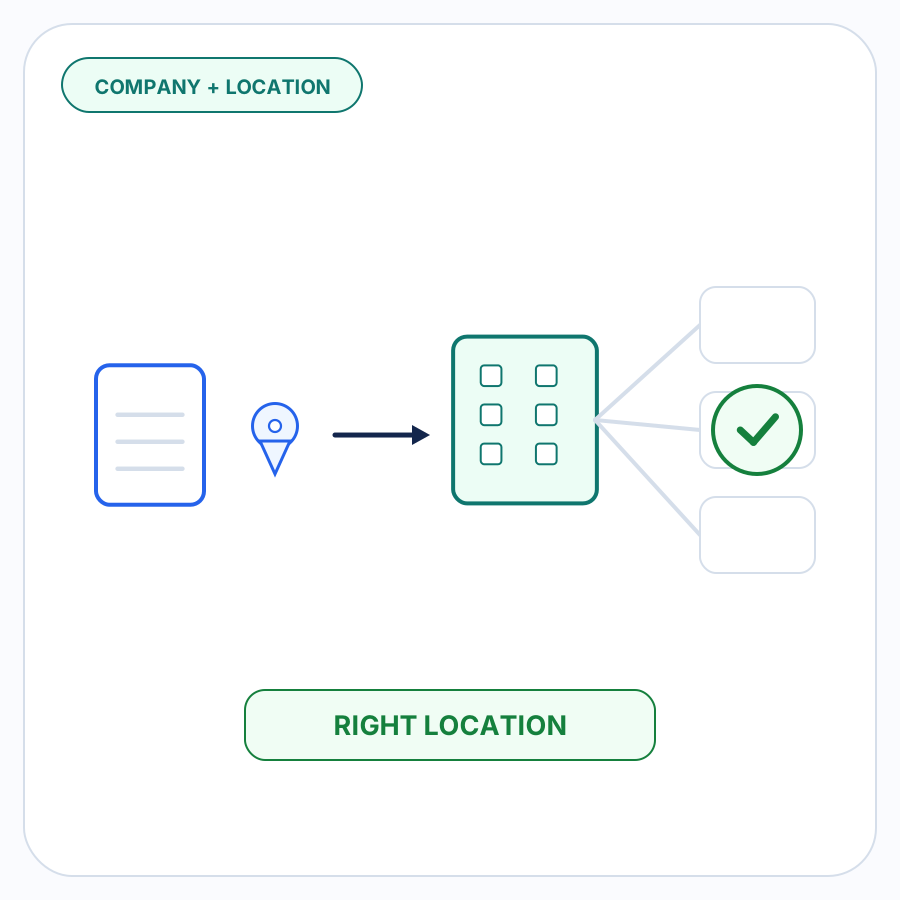
Shopify defines a company as the parent organization for one or more company locations. A company location can have its own ship-to and billing addresses, pricing, payment terms, checkout settings, tax details, and contacts.
That makes location matching operationally important.
The sender’s email address, company name, contact information, destination address, and previously confirmed relationships can all provide useful evidence. But if those signals point to multiple plausible company locations, the workflow should ask for review instead of choosing one arbitrarily.
Shopify’s official documentation covers companies and company locations in B2B.
Match products rather than merely reading product text
The same principle applies to line items.
Some buyers use the merchant’s Shopify SKU. Others use an internal product number that only makes sense within that buyer relationship.
Suppose an email requests:
Buyer item 52-B — 3 cases
A useful order-entry process still needs to determine:
- which Shopify product or variant
52-Brepresents; and - what
3 casesmeans for that buyer and product.
A previously approved buyer-specific SKU or case-pack mapping is stronger evidence than trying to infer that relationship from scratch every time the buyer reorders.
Unknown codes should remain review items until there is enough evidence to resolve them.
4. Validate the proposed order and surface discrepancies
A correctly interpreted email can still describe an order that needs attention.
Before creating the Shopify draft, check the proposed order against the information that matters in the merchant’s workflow.
Useful checks include:
- a buyer-supplied price that differs from the relevant Shopify pricing;
- an unfamiliar quantity or unit;
- an unresolved case-pack conversion;
- a shipping address that differs from expected company-location information;
- an inventory concern;
- a purchase order that appears to duplicate one already processed;
- required information that is missing;
- conflicting details within the incoming request.
A discrepancy is not automatically an error on the buyer’s part.
A changed address might be intentional. A different price might reflect a conversation that happened outside the order. An unusual quantity could be completely valid.
The automation’s job is to identify the difference. A person can decide what the difference means.
5. Review what actually needs judgment, then create the draft
The goal of automation should not be to make an uncertain email look certain.
It should resolve routine details where there is enough evidence and bring the remaining questions to a person.
Imagine a repeat customer emails a 15-line reorder. Fourteen product codes match previously approved buyer mappings, but the fifteenth is new.
The useful review is the new line item. Staff should not have to reconfirm the other fourteen simply because one part of the order needs attention.
Once the unresolved details have been addressed, the request can become a Shopify B2B draft order.
Shopify specifically documents draft orders for B2B purchases submitted outside the storefront, including by email. When the appropriate B2B customer and company location are assigned, Shopify applies the relevant company context to the draft, including its applicable pricing, payment terms, and checkout settings.
See Shopify’s documentation on creating B2B orders using draft orders.
Why an email parser alone does not solve B2B order entry
An email parser answers a capture question:
What text or fields did the buyer send?
B2B order automation has to answer a different set of questions:
What do those fields mean in Shopify, and is there enough evidence to act on them?
Consider a body-text order that says:
Acme needs 6 cases of 52-B at $72 per case. Please send this one to the new warehouse.
A parser might successfully identify:
- customer:
Acme; - product:
52-B; - quantity:
6; - unit:
case; - price:
$72; - destination note:
new warehouse.
Every field could be extracted perfectly while the order still requires work.
Which Acme company location is buying? What Shopify variant does 52-B represent? How many units are in a case? Does $72 agree with the expected pricing? What address does new warehouse refer to?
That is why reliable email automation needs an interpretation layer and a Shopify-resolution layer.
What should happen when the email and attachment disagree?
Conflicting source information should become a review item.
For example:
- the attachment names one shipping address while the email body asks for another;
- the email says to change a quantity that is still different on the attached PO;
- the buyer supplies one price in the message and another in the spreadsheet;
- the PO number is absent or inconsistent.
There may be businesses with explicit rules for resolving particular conflicts. Where those rules exist and are authoritative, automation can apply them.
Without such a rule, choosing whichever value looks more plausible hides uncertainty rather than resolving it.
Keep the conflicting evidence visible and let the merchant decide.
When email order automation is a good fit
Email automation is most useful when email is already a real ordering channel for the business.
It is especially relevant when:
- buyers use a mixture of attached orders and body-text requests;
- repeat customers have their own product codes or ordering conventions;
- staff currently copy order details from the inbox into Shopify;
- company-location, pricing, address, inventory, or duplicate-PO checks matter before entry;
- most of an order can often be resolved while a smaller number of details need judgment;
- the team wants Shopify B2B draft orders to remain the review boundary before the transaction proceeds.
The point is not to preserve email at all costs. Some buyers may prefer storefront ordering, structured integrations, or other channels.
But when important customers already order by email, automating the internal handling can be more practical than requiring every buyer to adopt a new process.
How PO Autopilot handles emailed B2B orders
PO Autopilot is built for commerce teams using Shopify B2B that receive orders outside the storefront.
For email intake, you can forward an email containing an attached purchase order or order details written directly in the email body.
PO Autopilot interprets the buyer, products, quantities, units, and other order details, then matches the request against Shopify B2B companies, company locations, and products.
Approved buyer-specific SKU, UOM, and case-pack mappings can be remembered for later orders. Pricing, quantities, units, shipping addresses, inventory, duplicate purchase orders, and missing or ambiguous details can be surfaced for review.
The workflow is intentionally review-first: supported information can be resolved, while missing, changed, or unclear details stay in front of the merchant before the Shopify draft order is created.
For current supported formats and product-specific questions, see the PO Autopilot FAQ.
If your team is copying emailed B2B orders into Shopify, see how PO Autopilot handles the intake and review workflow.
FAQ
Can Shopify handle a B2B order that arrives by email?
Yes. Shopify documents B2B draft orders specifically for customer purchases submitted outside the storefront, including email and phone orders.
Shopify’s documented workflow gives you the draft-order destination. The intake work still involves identifying the appropriate B2B customer and company location and adding the correct products and other order details, whether that work is performed manually or through an automation layer.
Does an emailed B2B order need a PDF attachment?
No.
An order request can be written directly in an email body. The important requirement for an automated workflow is that it can interpret the supplied products, quantities, units, customer information, and other relevant details without requiring the buyer to manufacture a formal document first.
PO Autopilot specifically supports order details written directly in an email body as well as emailed purchase-order attachments.
What should automation do when it cannot confidently match an emailed order?
It should stop the uncertain part for review.
An ambiguous company location, unfamiliar buyer SKU, unknown case-pack conversion, conflicting address, or other unsupported detail should not be silently turned into a confident Shopify value.
Good automation resolves evidence-backed work and makes uncertainty visible.